Repair a Ubiquiti UVC-G4-Pro CCTV Camera

It seems like a fairly common problem that these cameras can fail due to the RJ45 port on the back pulling up off the circuit board. Symptoms include flashing green light, unstable Unifi Protect application (keeps crashing) or the camera simply doesn't power on. There are several threads out there on this topic and it seems to affect other models such as the UVC-G3 and others. There is a good thread here on the topic relating to the G3: https://community.ui.com/questions/I-broke-the-RJ45-of-my-brand-new-G3-PRO-/e8afb284-ae60-4afe-8c81-2aa1b9bcf5e6

If you want to cut to the chase, there is a guy (TomBK) who you can directly DM to get you a custom made replacement board that he makes himself: https://community.ui.com/questions/I-broke-the-RJ45-of-my-brand-new-G3-PRO-/e8afb284-ae60-4afe-8c81-2aa1b9bcf5e6#answer/4c00c8eb-2913-410c-90df-466f67aadbfd

If you are interested in the gory details of a repair, keep reading.

The first step is to open the camera. You basically unscrew the plastic lens cover which will be on there quite tight, a screw driver across the face of the lens will give some leverage. When you open it up you can get to the next step which is to remove the four longer screws holding the IR Beam / LEDs.

Click Image to Enlarge

It's interesting to see the two desiccant packets in there to mop up any extra moisture that can get in.

Click Image to Enlarge

The next step is to remove the four flatter and shinier Phillips head screws to remove the main camera assembly. It's interesting to note that there is a USB port in there. As a test, I was able to power up the camera with it, but I didn't mess around any further. I suspect this could be a fun avenue for further investigation.

If you've made it this far, it should not be hard to get to, and remove, the little board that holds the RJ45 port. You can see in this photo the arrows showing the complete separation of the RJ45 port from the board. In my case it had ripped up the traces and while in the camera was giving an intermittent bad connection.

Click Image to Enlarge

The other side of the board has a 12-pin header connector to connect to the camera sub-assembly. The repair involves essentially repairing those electrical connections. By scratching away at the top layer of the PCB I was able to see where those traces went on the connector. Here is my assessment of the board pinout.

Click Image to Enlarge

This is my crude drawing of how to map the pins on the RJ45 to the connector on the other side of the board.

Click Image to Enlarge

You can see on the other side of the board where Pin 0 is marked on the actual board. 

In my case I didn't have the tools or even the solder paste to try an "on board" repair. Some people have used conductive ink pens with some success as well. I went old-skool and just used some wire, which I colour coded to the normal CAT5 scheme.

Click Image to Enlarge

The hacky part is to then wrap it around and connect it to the other side. If you use my method, the camera will no longer be waterproof since it won't close properly when you put it all back together. This wasn't a problem for me so I routed the wires through those existing holes which I no longer will be using.

Click Image to Enlarge

I used a lot of electrical tape to isolate the wires from each other and also to add a bit of strength. On the other side it looked like this.

Click Image to Enlarge

Because this board is also slightly thicker now with my repair, it doesn't fit as neatly back against the camera board, but it still works.



License plate light repair on Abarth 595 / Fiat 500

The right-hand side number plate light on my 2017 Abarth 595 was intermittently working and most annoyingly it would randomly trigger the warning light on the dash. This post is about my debug/repair and I uncovered a few things that might help others in the same situation.

Since only 1 of the lights wasn't working, my hunch was that the issue was in the handle somewhere rather than in the wiring going to the hatch. However, I've seen many cases where the wiring loom to the hatch has frayed due to a very poor design by Fiat. My first step was to check that, and sure enough it was heavily frayed.

Sadly this is a very common issue that has gone unresolved for 10+ years of this design. In my case, this was not the cause of the intermittent light, but I taped and reinforced all those wires. If I had let it go longer the wires would eventually have broken completely. Also the smaller grey/white wire had 12V on it and would have blown a fuse.

Once that was repaired, it was time to go to the actual housing with the light in it. Step 1 was to remove the inside panel which I did using the same technique as in this post.

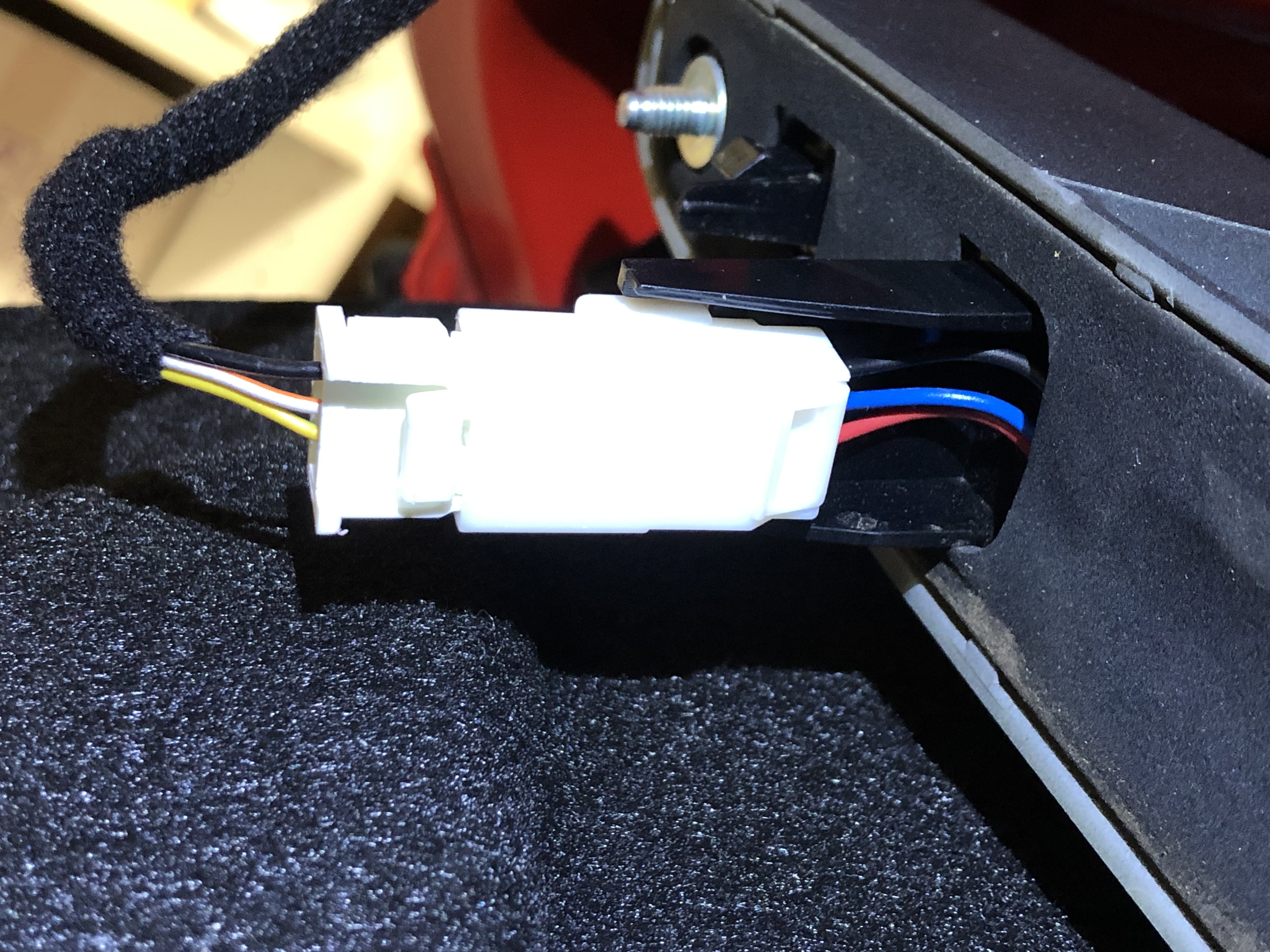
Once inside you will see where the wiring from the loom connects to the housing on the inside. The loom has 3 wires (Black, Orange/White and Yellow/Green). Those connect to Black, Blue and Red which go to the handle. Black is ground, Blue goes to the hatch release button and Red is the power to the license plate lights.

This connector is easy to un-clip. The next step is to remove the handle itself which is held in place with 4 10mm hex nuts. 

Once you remove the nuts, the handle just comes off quite easily revealing a bunch of cutouts. I took the opportunity to clean it up a bit since it had collected a bunch of dirt. I'm a bit curious what the larger rectangular cutout is on the right side since it's not used for anything on my car. If you know, drop it in the comments. I'm thinking maybe it's for a manual key lock?

With the handle removed, I then tried to get to the inside of it. Using prying tools I quickly realised that the plastic handle assembly wouldn't come apart without breaking something. So instead, I went in through the other side by cutting out a slit in the foam to be able to access the right-hand light.

The left hand light is powered from the red wire (above) and internally it is extended with the brown/red and brown/black and black wires to the right side. In my case this is what had a dodgy connection and was easy to fix.

The other thing I noticed is that both the right and left lights had heat damage to their housings. These bulbs are incandescent and get hot enough to damage the inside of the housing per the photo below. Replacing these with lower wattage LEDs to prevent further heat damage might be an option - but I don't think it will work.

These are 36mm festoon lights. To avoid getting errors on the dash (which was the whole point of this exercise) you would need to get lights which are sold as "CAN-bus Error Free".

The method that the car uses to determine if the light globe is blown out is to test how much current is drawn by the lights. A dead light draws 0A and a working light draws about 420mA (5W @ 12V). A LED replacement would draw far less than 5W and thus may not draw enough current to avoid an error light. The "Error Free" lights thus also include a resistor with the LEDs so that the total current draw of the package is close to about 420mA. The clincher is that the heat is produced by the entire power draw of the package. Thus with LED + Resistor, the total draw would be 5W and thus the heat would be about the same. If the heat is the same, then the melting issue isn't resolved. If I am wrong, let me know in the comments. Another option is to put a resistor elsewhere in the circuit where the heat wouldn't be an issue.

With everything fixed, I did a bench test of the handle assembly and the lights worked. Interestingly the total draw was 8.6W across the two bulbs so clearly the 5W rating on the bulbs is not very precise (and they are 5 years old anyway).


Because I had torn the foam to get access to the wires, I used a bit of black duct tape to reseal it. Not sure if this was the best way to do it (if you have better ideas, put them in the comments).


Then re-installation was simply the reverse. Place the handle assembly on the car, reattach and tighten the 4 hex nuts, connect the electrical connector, test the lights, replace the panel and the job is done.

Abarth 595 license plate grommet drama

Did a bit of an impulse buy on the weekend and flew down Monday to MEL to drive back to SYD the same day in this 595 Comp. Hard to find around here with red / sunroof / manual transmission. The next day it was time to get it registered in NSW. The standard NSW plate is about the same size as the VIC plate, but I wanted something to cover up those white grommets so I went with the "Euro Style" NSW plate. 

The physical process of swapping a license plate should be one of the easiest possible "mods" anyone could ever do.

I removed the VIC plate and the previous owner had simply screwed it into the sheet metal leaving a bunch of holes and some paint damage. I covered up the damage with a bit of primer to not cause problems in the future.

Then it was simply a matter of drilling holes in the NSW plate to match up with the factory grommet locations. Interestingly it's not exactly a rectangle for some reason (if you look at the grommet on the lower right you can see it's not exactly in-line with the one above it.

With all the holes made in the plate and everything ready to go, I start screwing it into the grommet, and the first two go OK and then #3 and #4 break and fall into the gap! 

You can see from this picture that the factory holes are actually quite large. The factory white plastic grommets were so brittle that they shattered with barely any pressure and then proceeded to fall into those holes. 

This actually poses two problems. First, how to attach the plate and second, which is far more annoying is that the little pieces will now be rattling in the door. 

So here is what I did.

To address the first issue, I used brand new screw grommets designed for a 4.2mm hole (these are the specific ones I used). I got these at a car parts store and they actually fit perfectly as you can see in the picture. With the new grommets in place, the wider license plate fit perfectly snugly. The grommets also make the plate stand off a bit so that the plate itself isn't rattling against the bodywork.

The next issue was far more annoying. The little pieces of the stock grommet were rattling around inside the deck lid and I had to get them out.

Using my trusty "trim puller" kit (this is the one I used) and a Torx driver I was able to remove the rear hatch panel. The plastic trim puller helps you pry out the plugs at the locations indicated with the red arrows. It may be possible not to need to remove all of them, but I found it easy enough to just remove them all and gain access to the area inside the hatch. The hatch closing handle requires a Torx driver to remove.

Once you've removed the panel, you get access to the interior and remove the bits that are rattling around inside. 

The photos below show the bits that were rattling as well as what the plugs look like when they've been pried off. To replace the panel, simply line up the panel and press them back in place. They go in nice and snug and nobody will ever know they were ever removed.


<=== These are the plugs that you pry out. There are two different sizes, so make sure you remember which one is which for when you put them back. If you do it carefully you won't leave any marks and you won't damage the plugs. This is where the pry tool mentioned above comes in handy. This video shows how it's done (start at about 3m30s). It looks like he's using a metal tool, mine were hard plastic and looked similar. https://youtu.be/WZx0DuzPpZY?t=213
These are the stock grommets from Fiat that came with the car and were completely brittle. The white circular bits fell off outside, everything else ended up in the door and was very annoyingly rattling around. =========================>


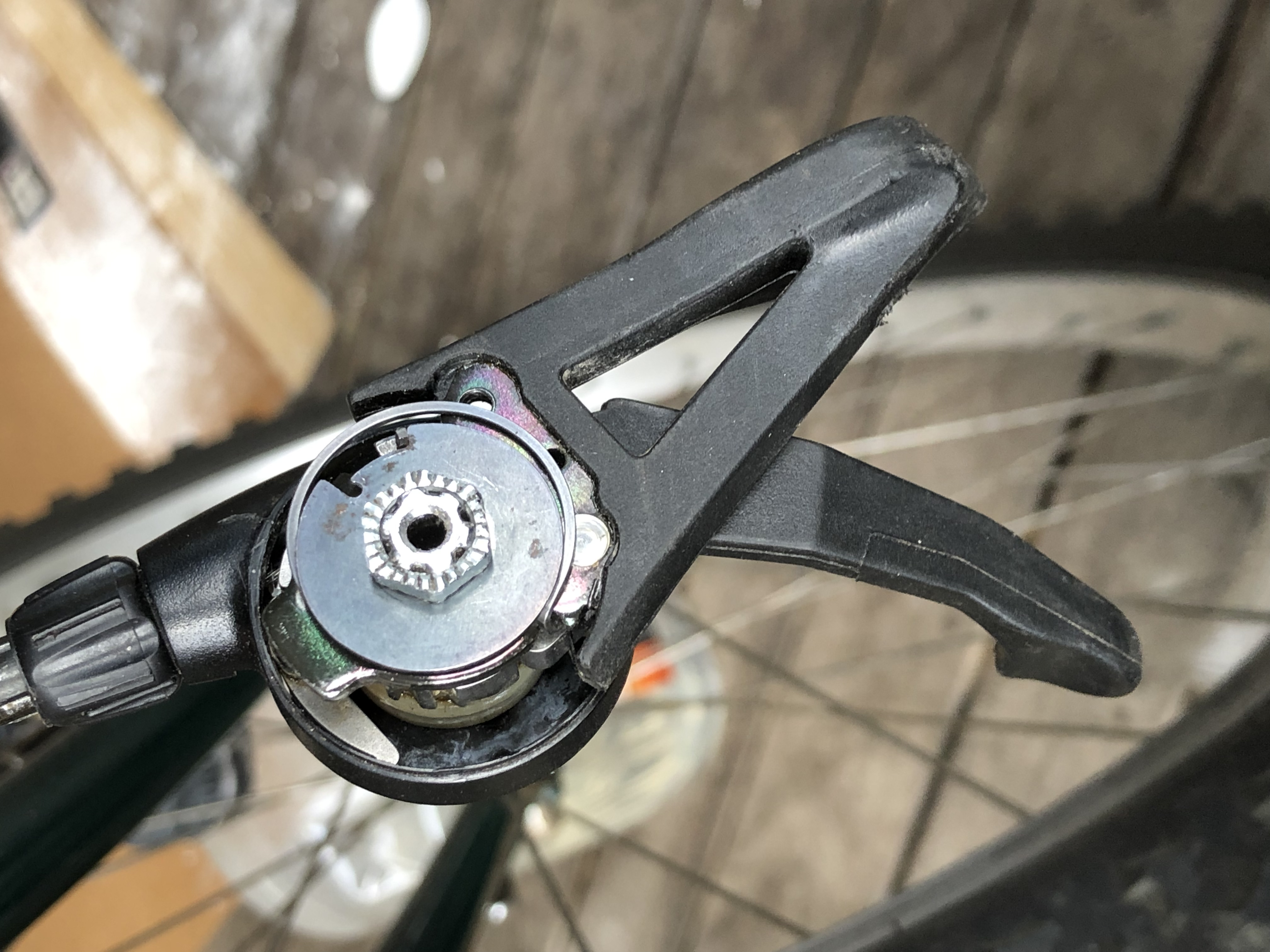
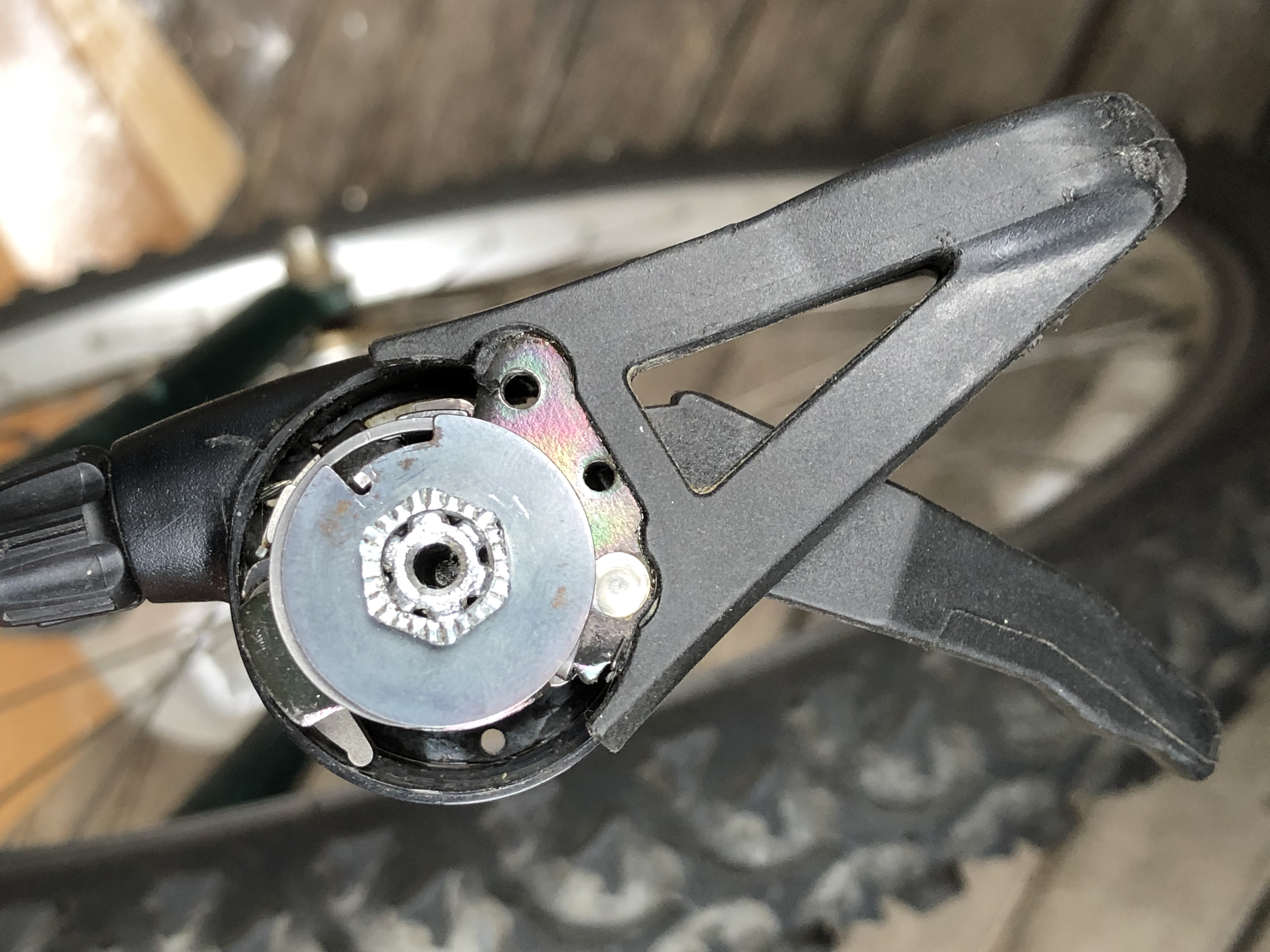
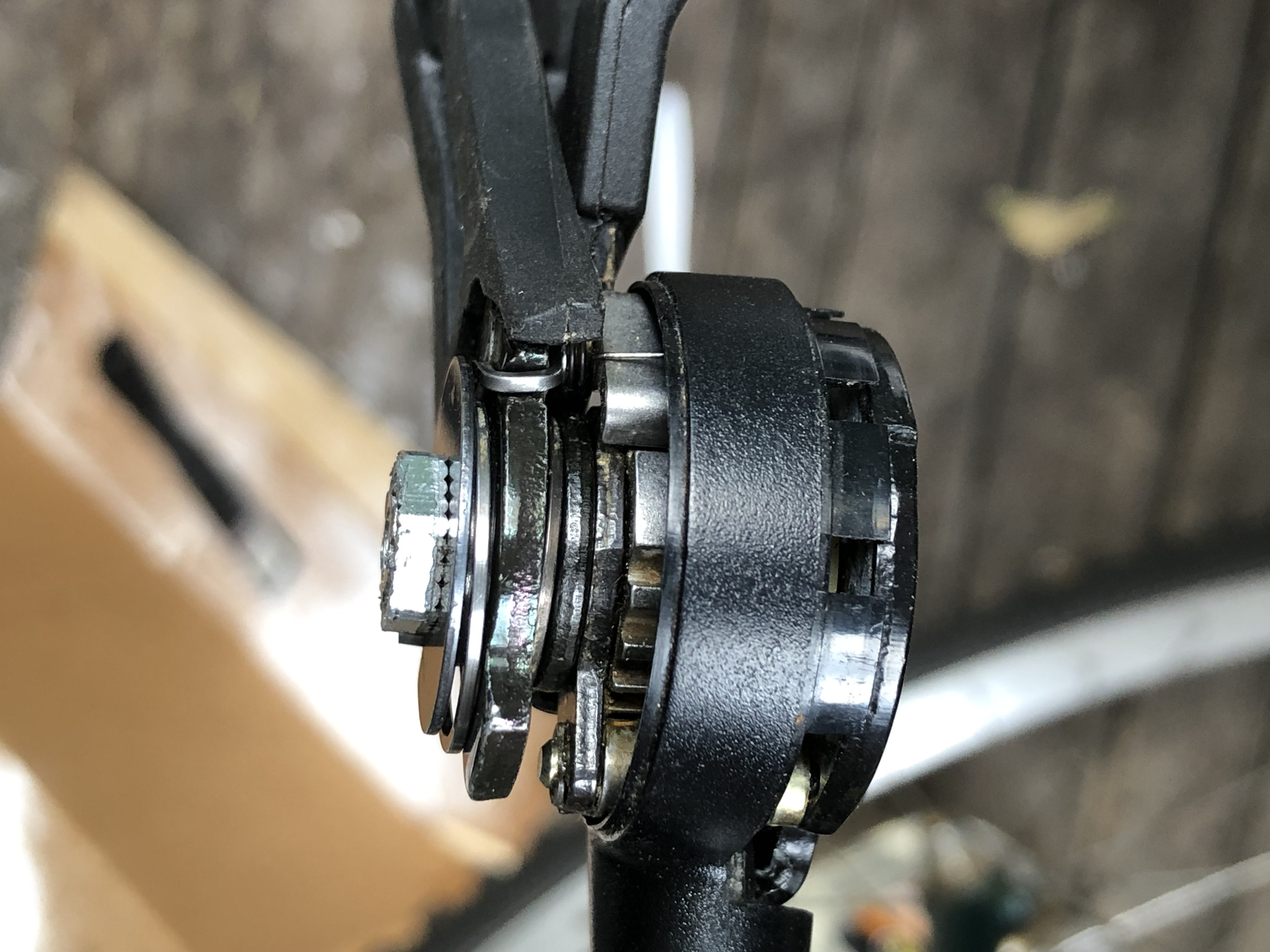
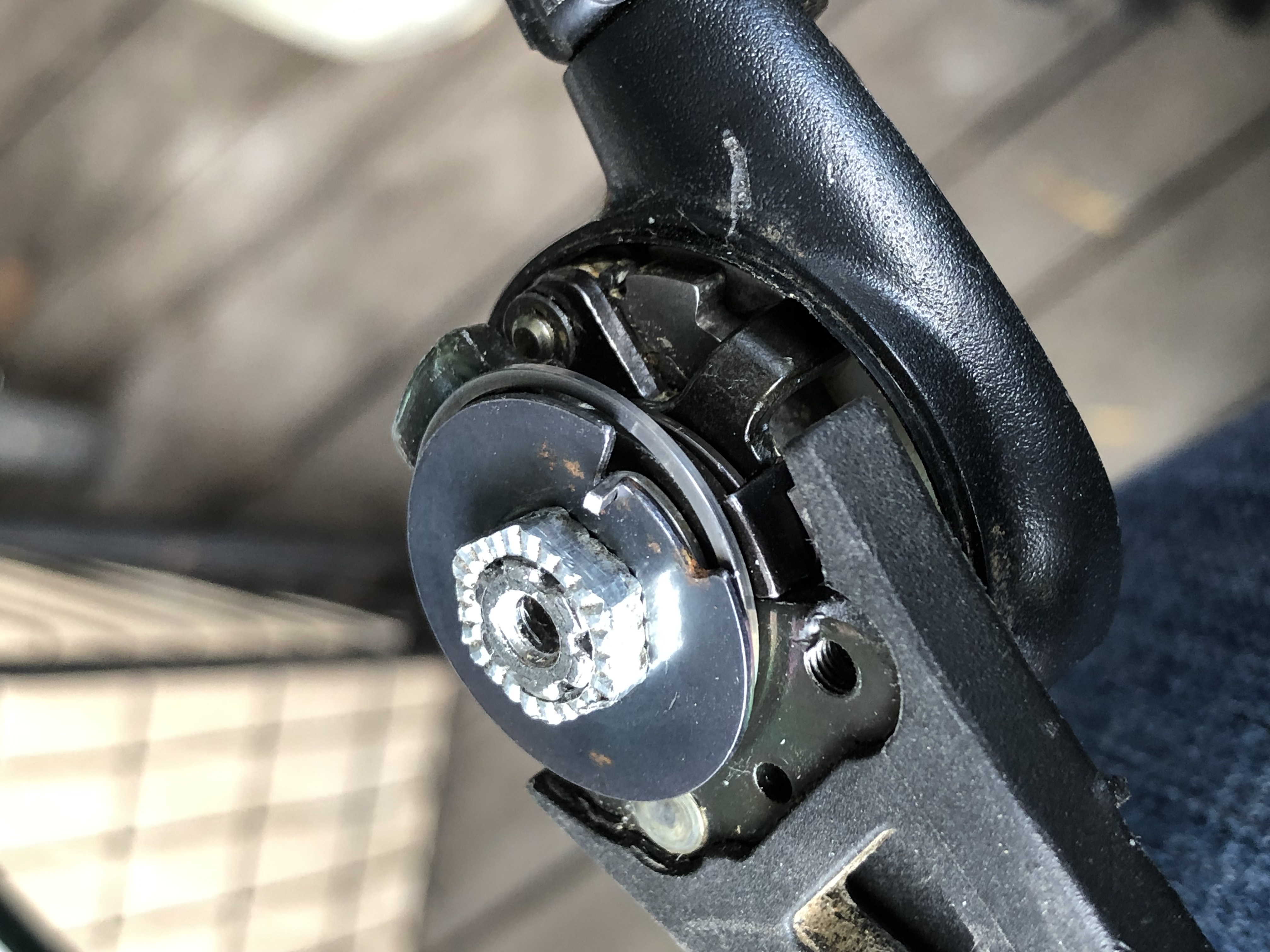
Shimano ST-AT20 (Altus A20) shifting mechanism teardown and rebuild

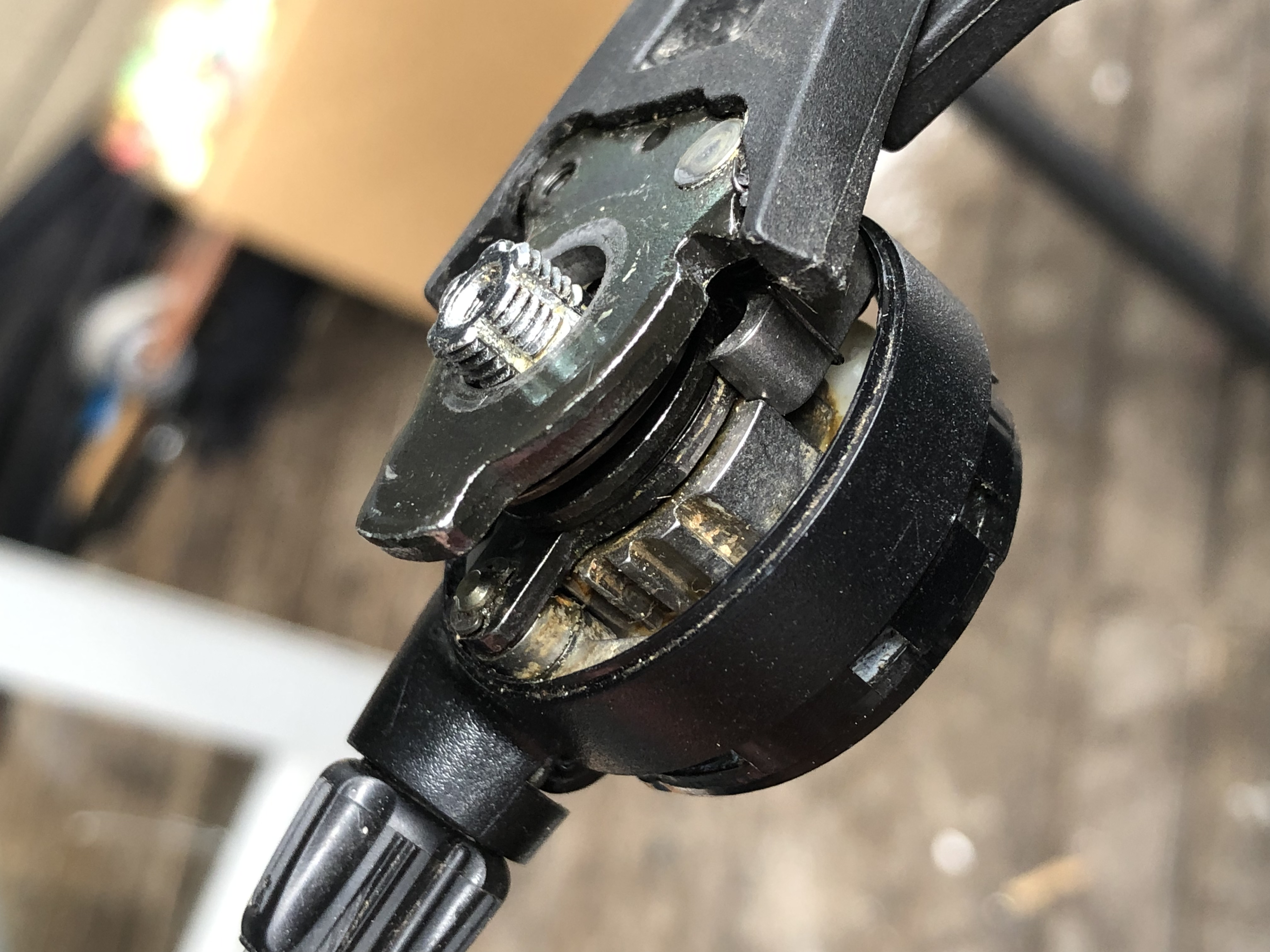
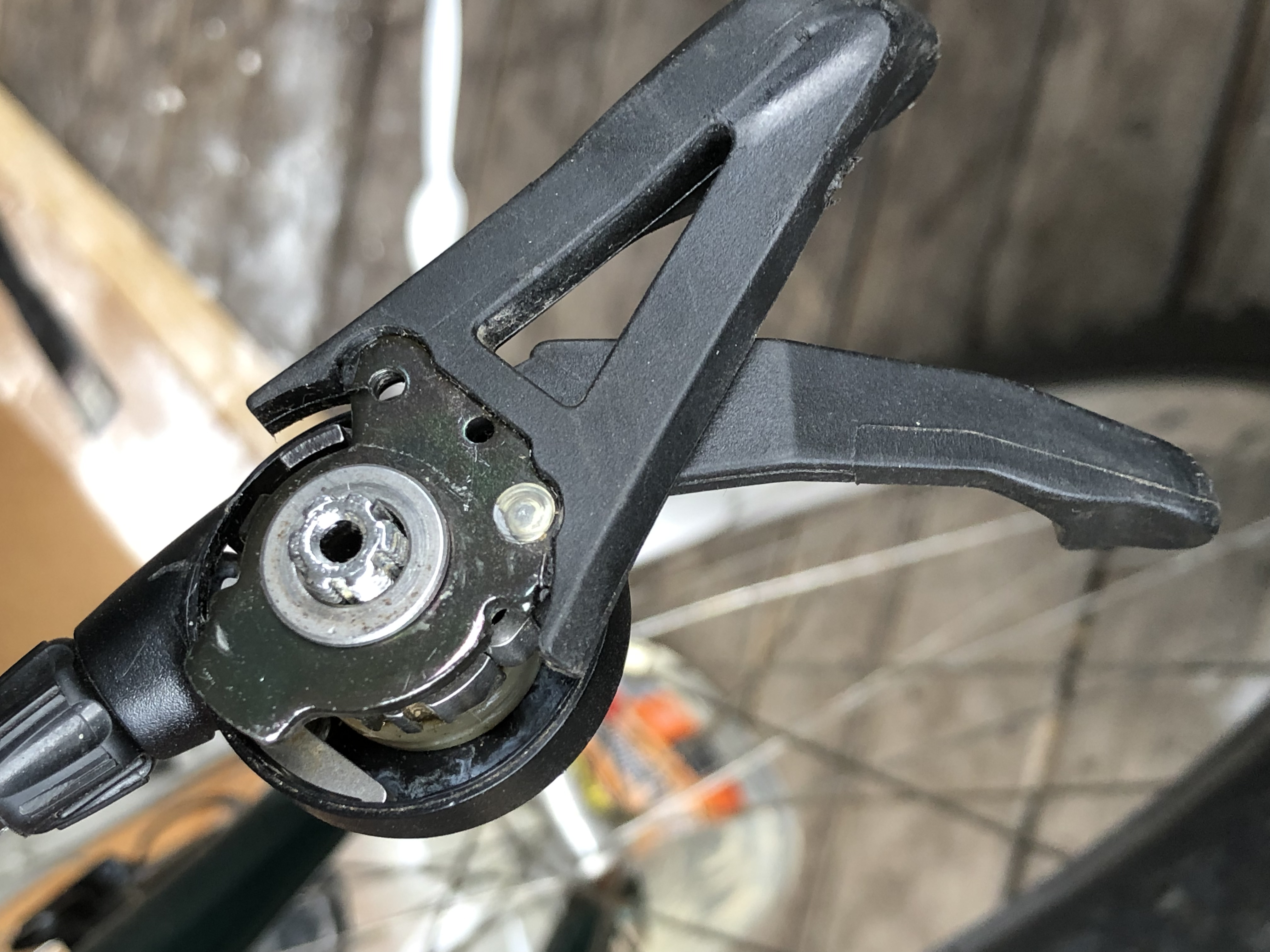
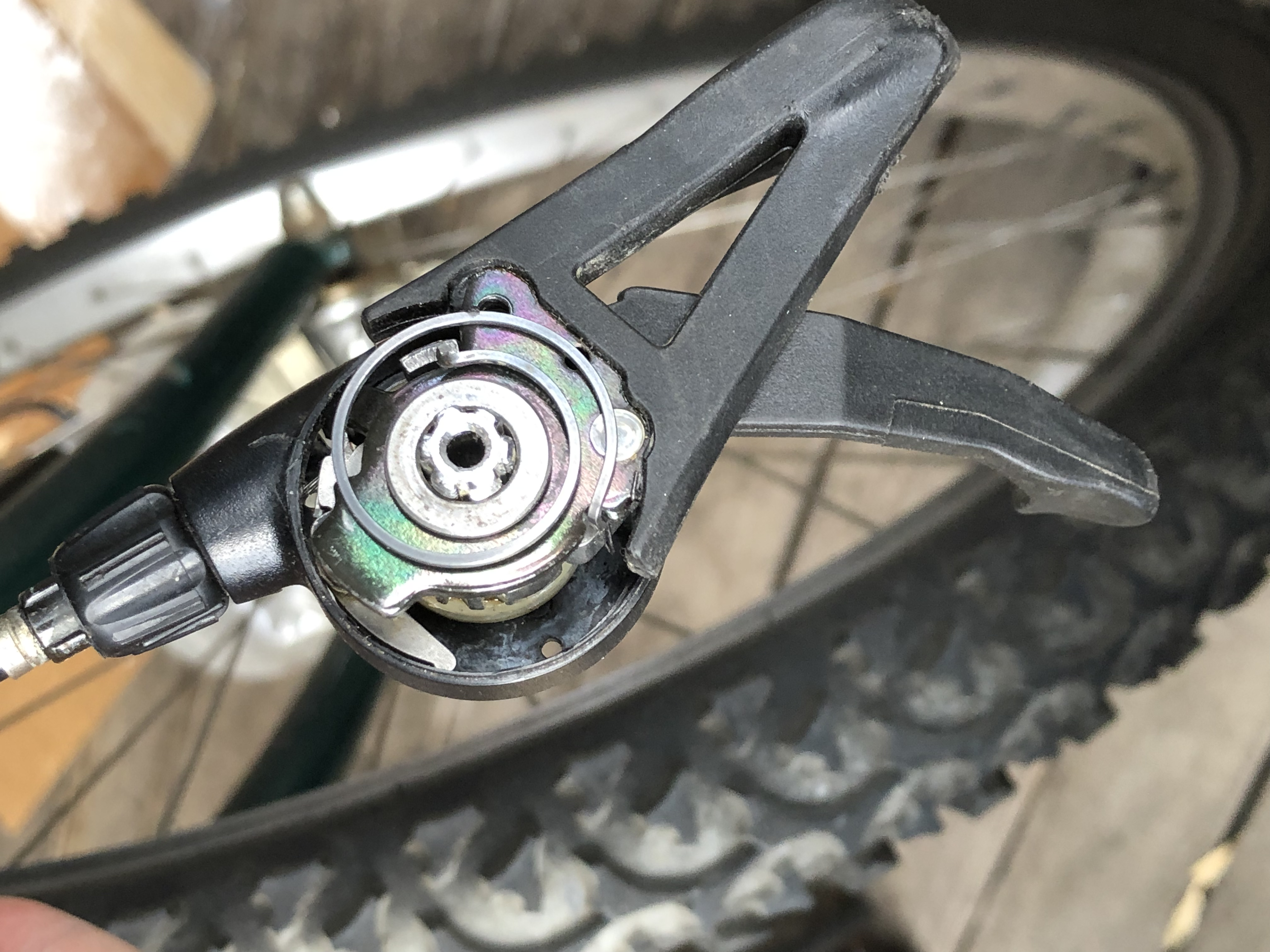
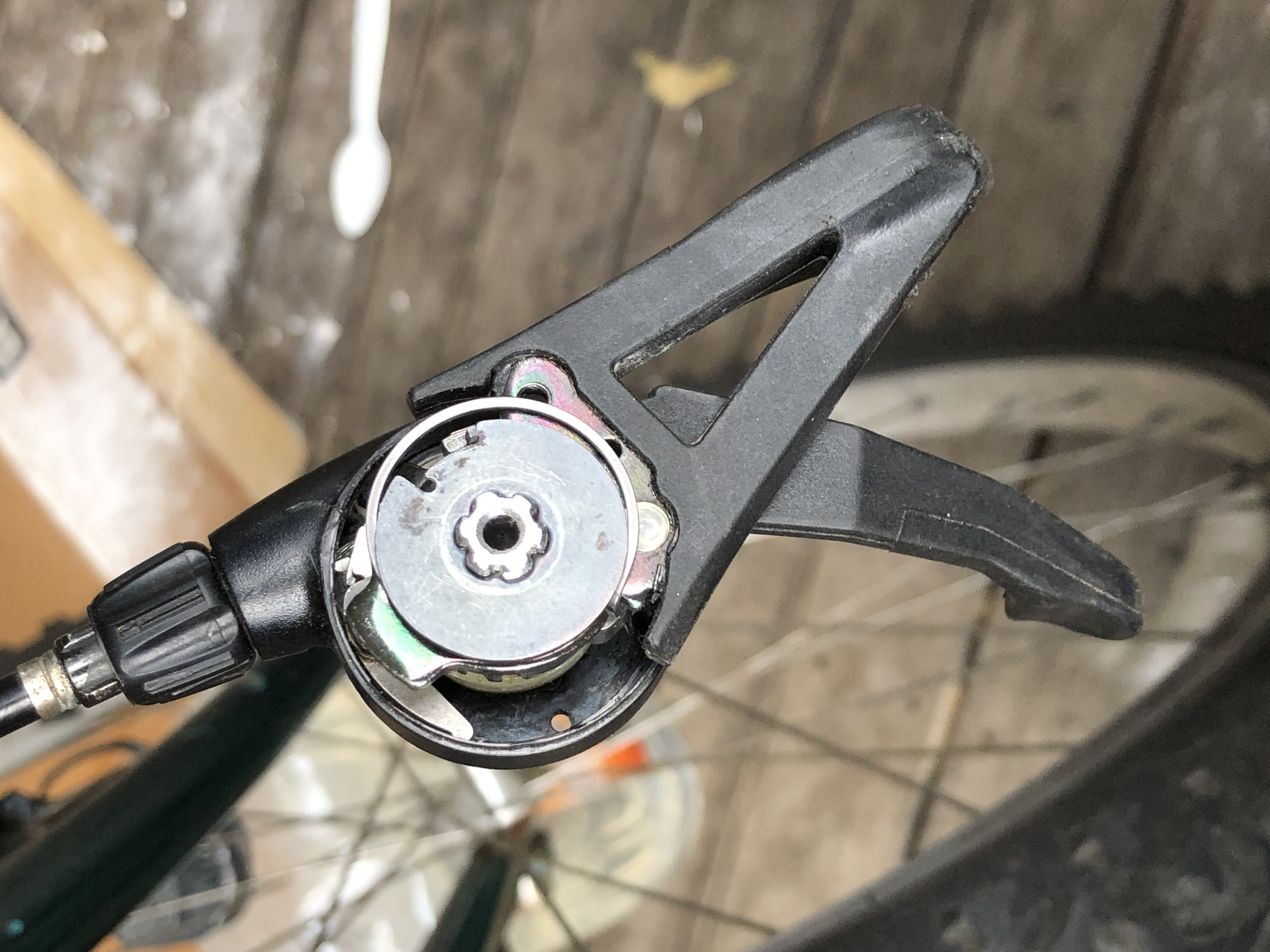
I've had my mountain bike with the stock Altus A20 (Shimano part # ST-AT20) shifting mechanism since I bought it new in 1993 and now finally I experienced the "doesn't shift" issue for the first time (in 2021 - not a bad run!). There are plenty of YouTube videos (like here) that show you how to fix it by squirting WD40 through the hole in the back, but I wanted to dismantle and clean it up. Oddly, I couldn't find any pics of the internals. Even on the Shimano website the best you can get is an exploded diagram that doesn't show you what it's like inside! See here:https://si.shimano.com/api/publish/storage/pdf/en/ev/ST-AT20/EV-ST-AT20-1292A.pdf

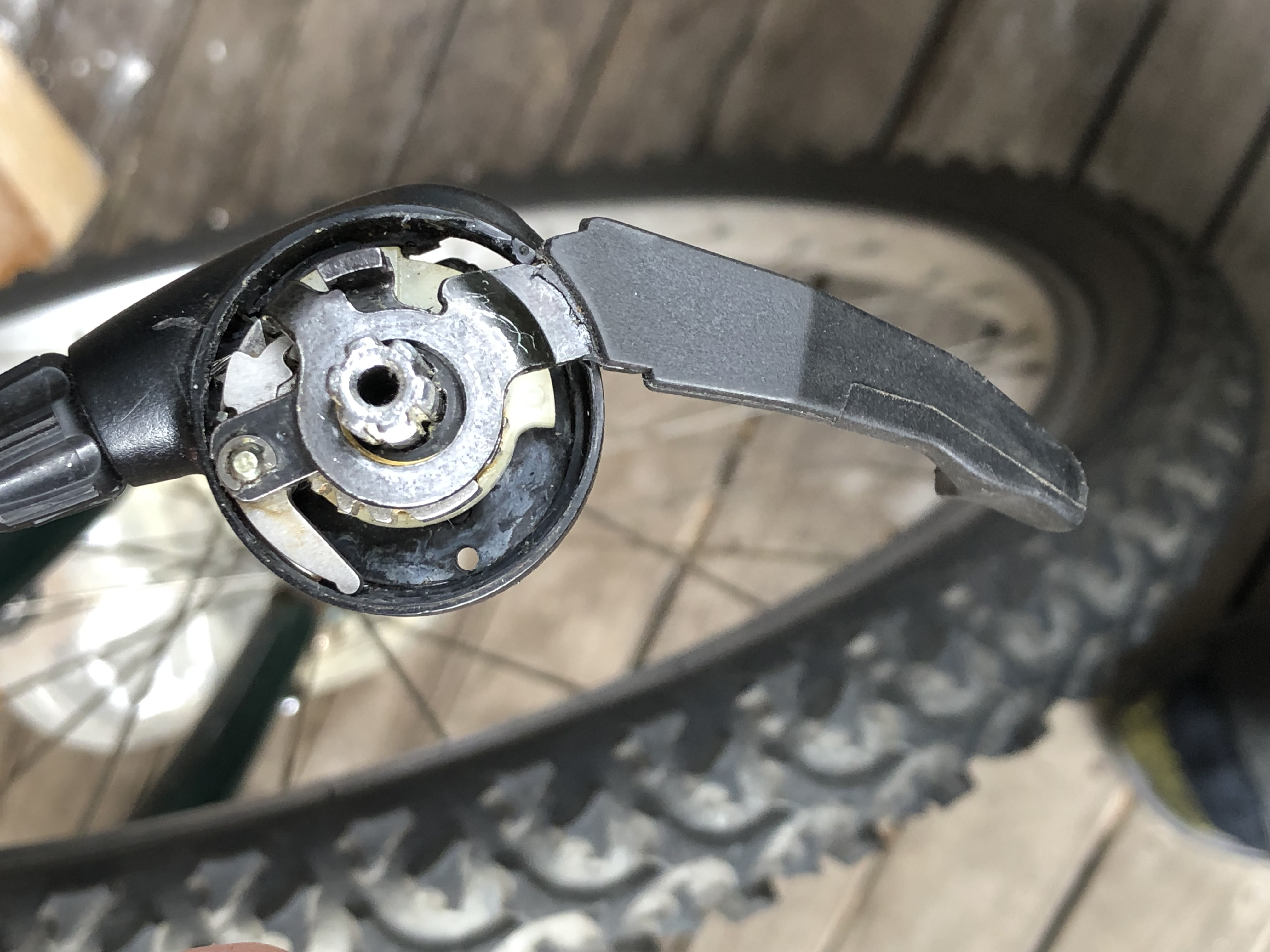
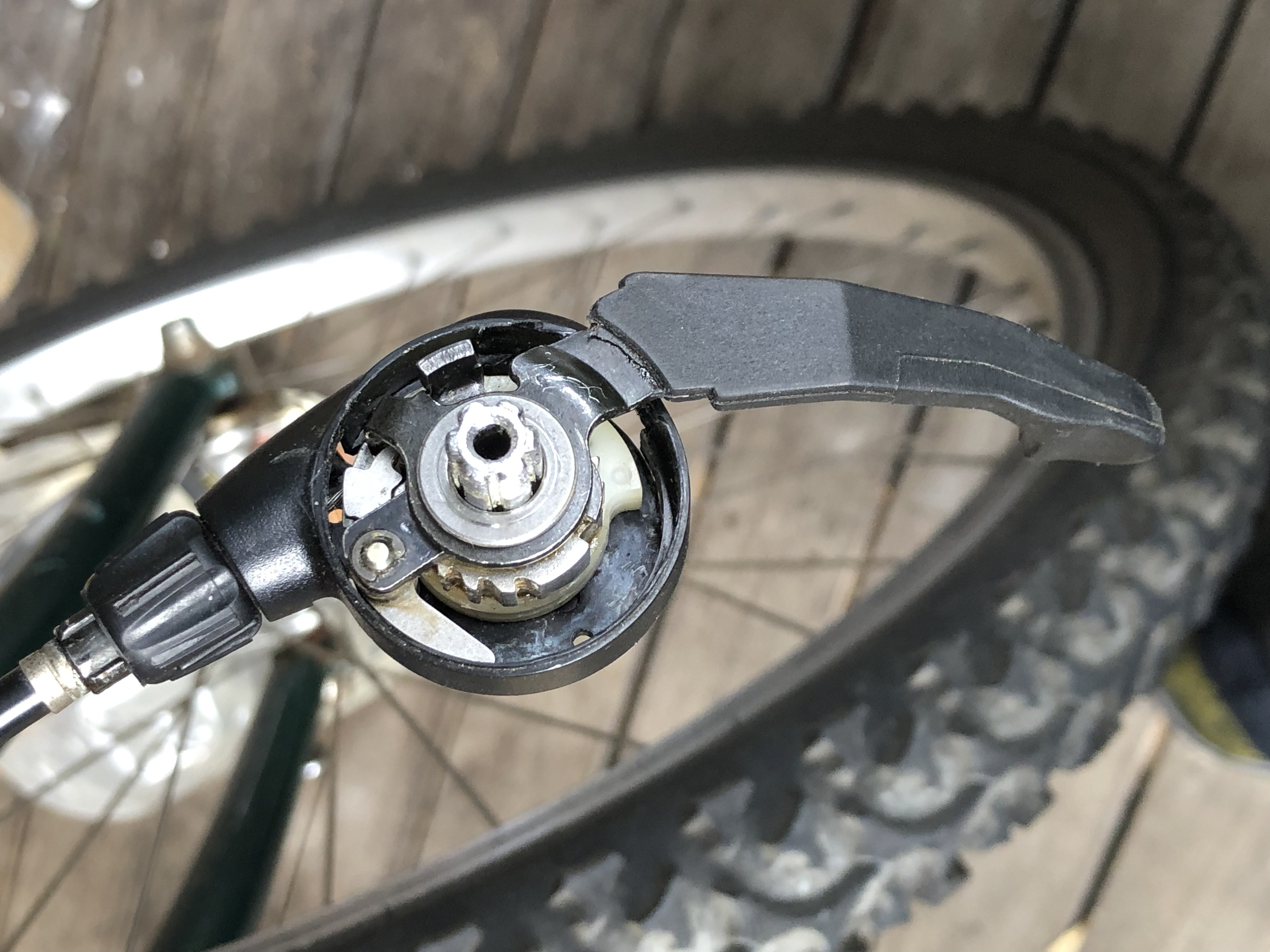
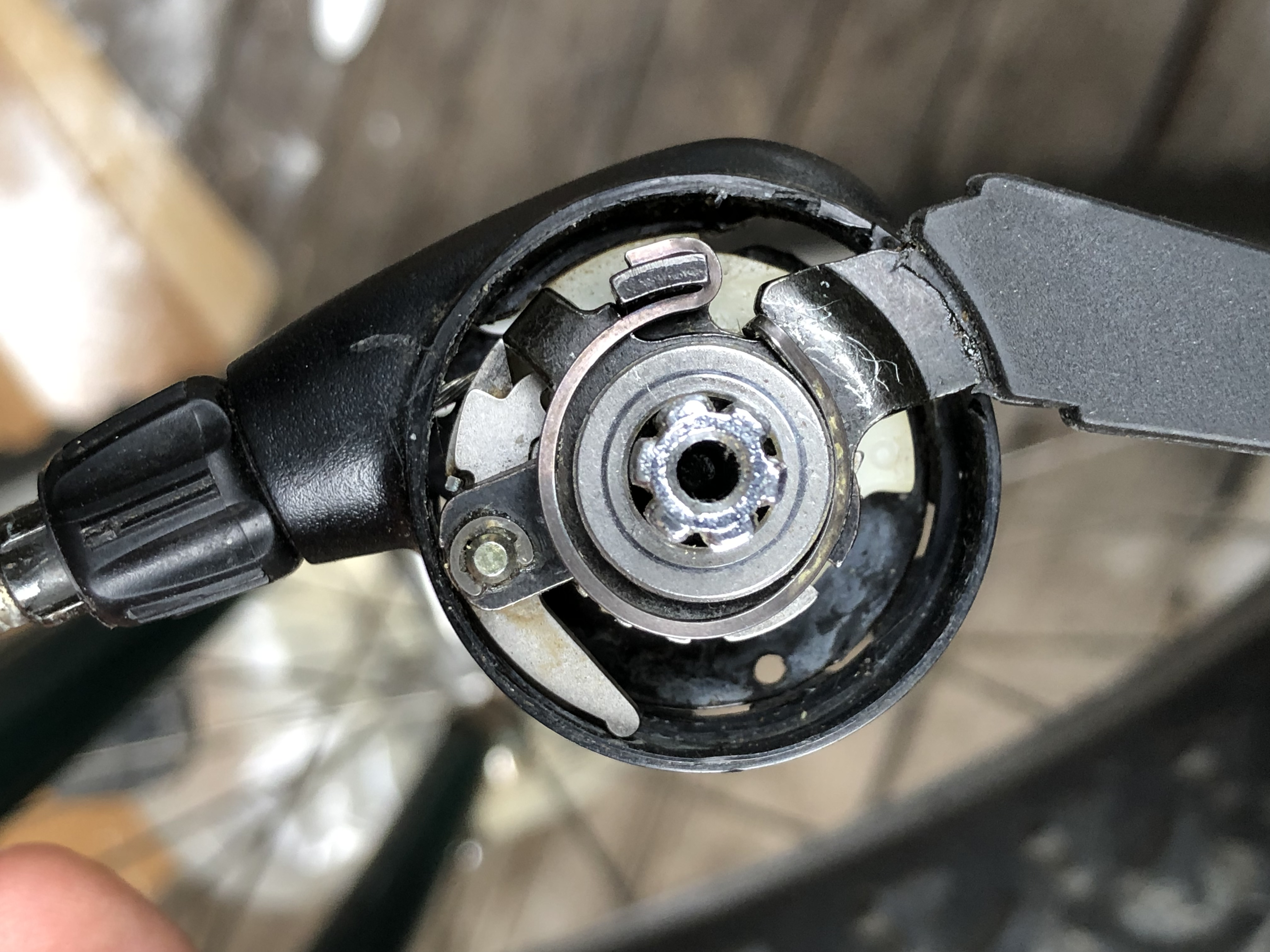
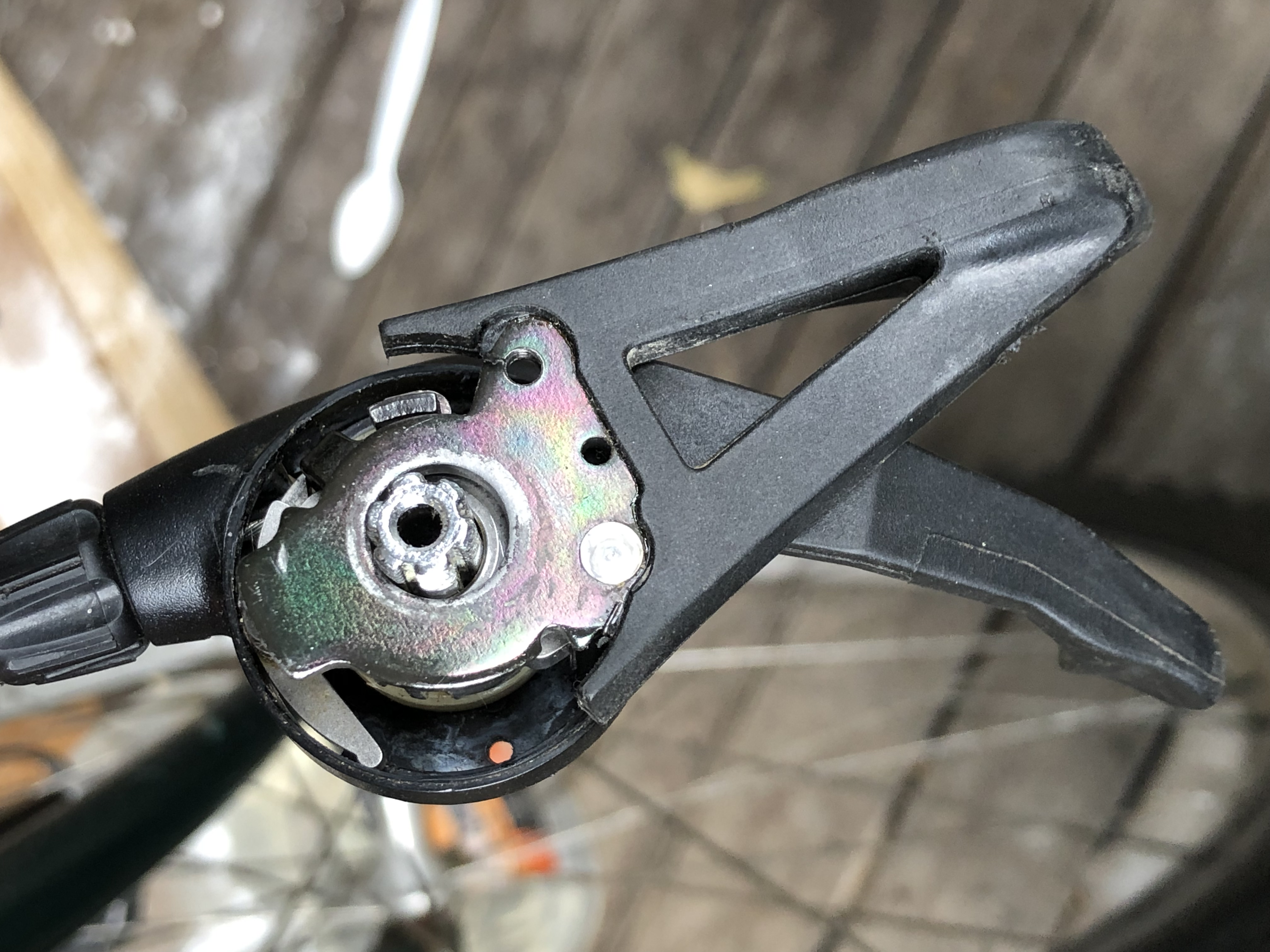
So since I had to take photos as I tore it down anyway, here they are in case you want to see what's actually inside this thing. In order to show the "clean" photos (taking it apart, it was obviously a complete gunky mess inside) I'm showing the photos in reverse after the parts were cleaned. To clean the parts, I just soaked them in degreaser.

Take apart the mechanism per any one of the many YouTube videos (or have a look at the photos here from the bottom up). Then place all the parts in degreaser and clean them all up.

I recommend that you scroll to the bottom of this page and look at the photos going up which will show you the disassembly. NOTE THAT THE FIRST NUT YOU HIT IS REVERSE THREADED - Clockwise to loosen, anti-clockwise to tighten.

Click on any of the images to enlarge. 

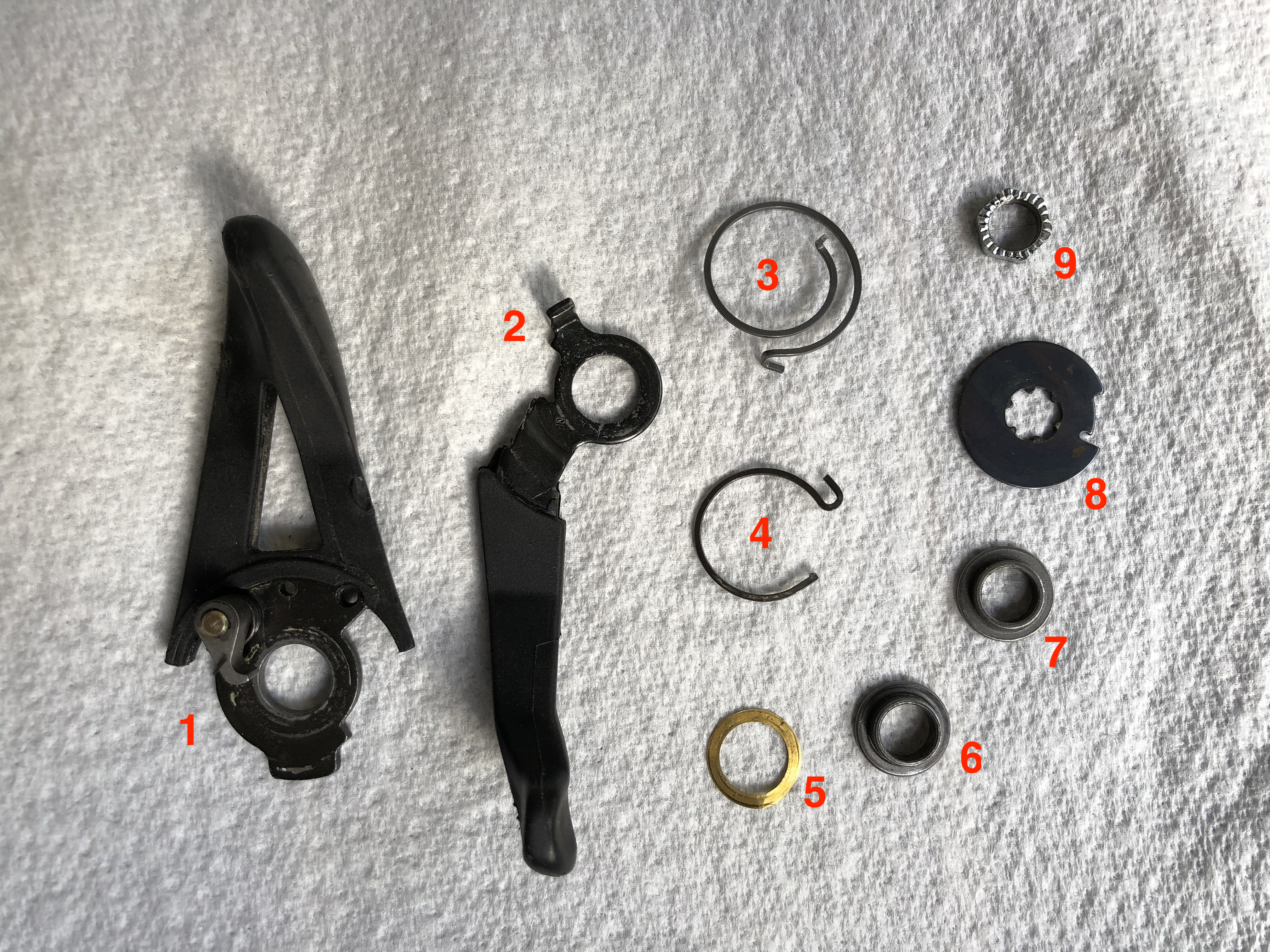
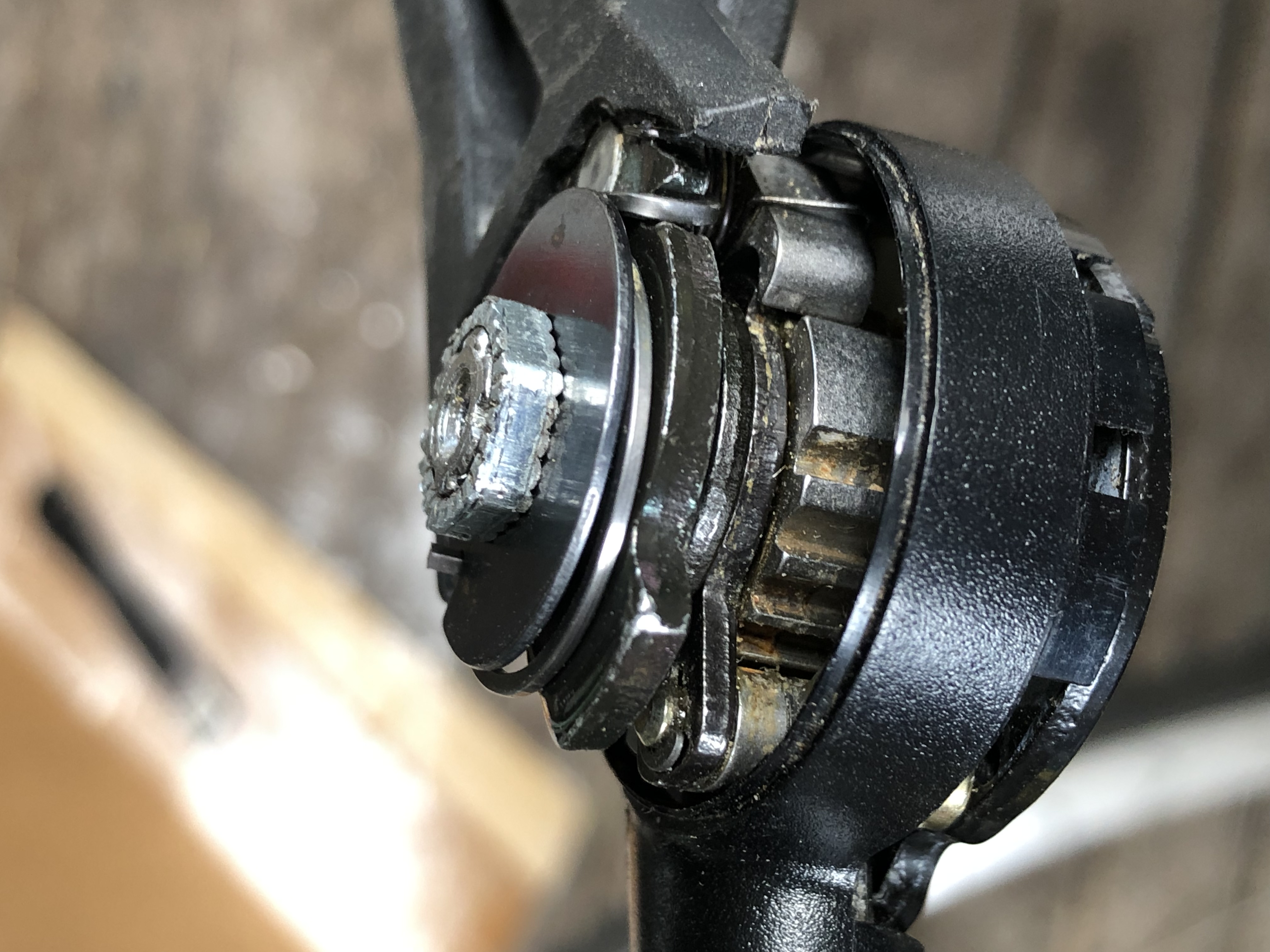
The larger lever (#1) has a little spring loaded mechanism which is what gets stuck and prevents the shifter from working. It needs to move freely and return quickly when you press against the spring. I was able to achieve this by soaking the whole part in degreaser, but you may need to remove the circlip and fully tear apart if that doesn't do the trick. 

Also note the following:

The copper bushing (#5) is very thin and easily bends.
The silver bushings marked #6 and #7 are not identical, but look very similar. They are sized to correspond to the two levers (marked #1 and #2).
The springs (#3 and #4) are best removed and installed carefully with needle nosed pliers and make sure they don't fly off somewhere never to be found again.


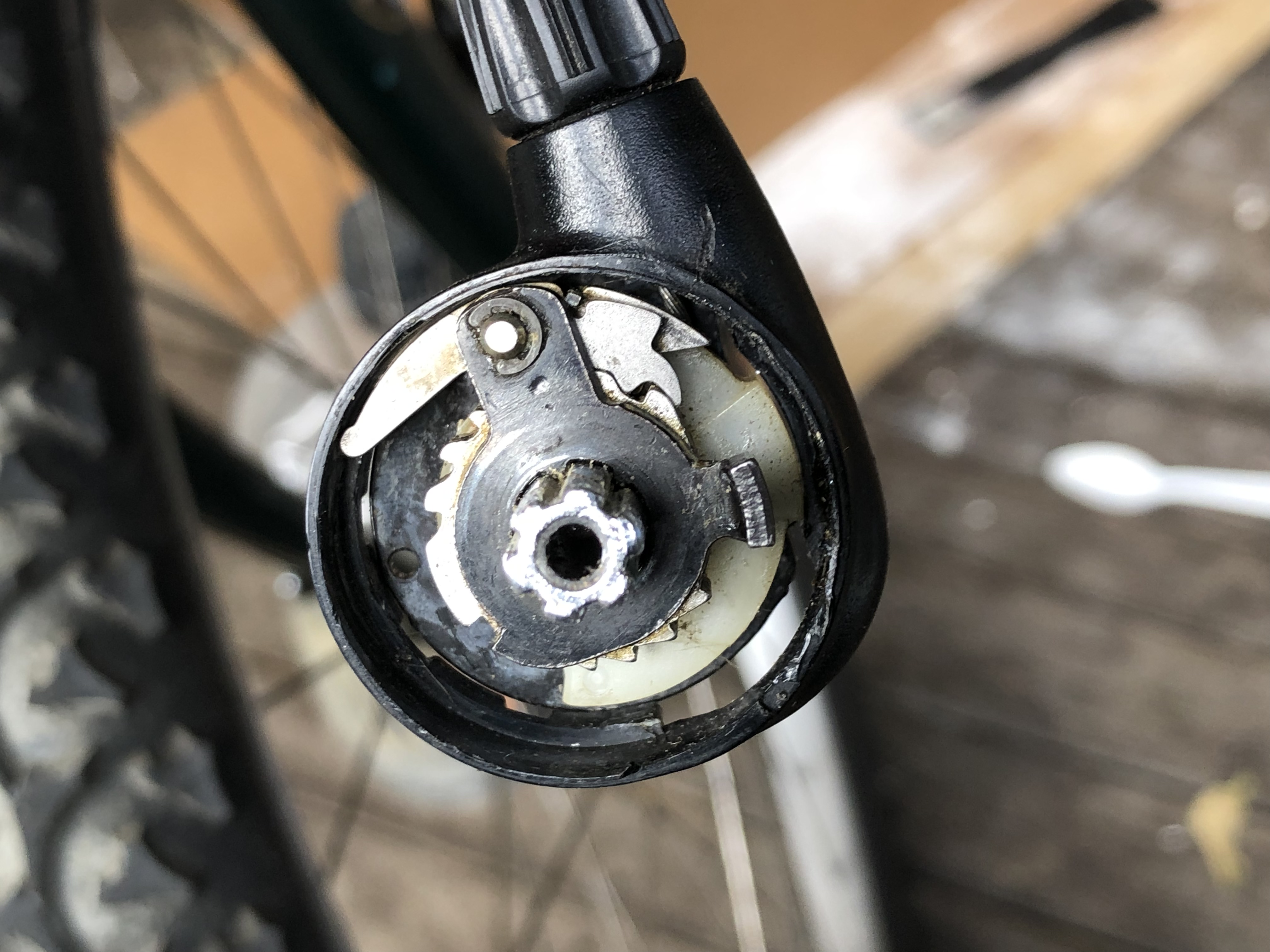
With all the parts removed, the mechanism looks like the figure above. I was able to clean this just by soaking it in degreaser and I didn't need to remove the cable itself. 

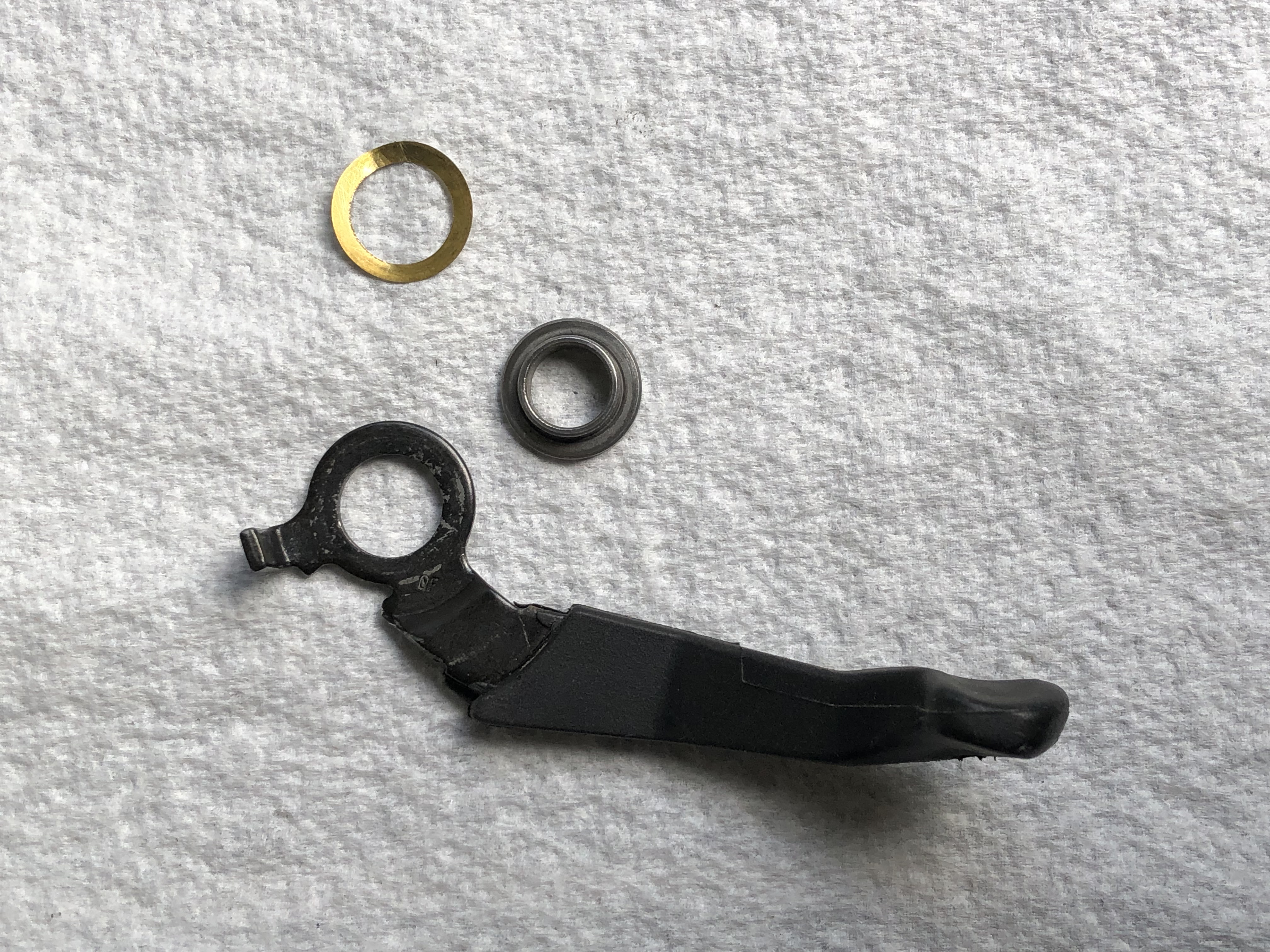
To put it all back together you start with making a "sandwich" with #2, #5 and #7 from the top image. I found it easier to put the copper part in first and then the other two, but keep in mind that you don't want to damage the thin copper bushing (nor lose any of the items). You can see I slightly bent the copper bushing already here.

I put the copper bushing in first...

 
Then I put in the lever (note the orientation)
 

Then the silver coloured bushing labelled #7 goes next with the flat part on the top and the cylindrical part on the bottom. This is used to centre the lever correctly. Make sure that you don't damage the copper bushing below.

And there you can see how the lever becomes nicely centered on the shaft. Next is the spring - you will need pliers to fix it on one end and bend it around to the other end. It needs to be under stress for it to work.

Then comes the next lever and I have two photos to show exactly how it goes below.


Then you will use the bushing marked #6 to center it like you did with the other lever.


Next is the spring which can be a bit confusing. One end will latch onto the lever, the other end will be sticking up waiting for the next piece of the sandwich.


Then you align part #8 so it can fit down the shaft and it should be aligned to catch the part of the spring that is sticking up in the groove.


Then you tighten on the last piece of the sandwich (marked #9 in the top image). KEEP IN MIND THAT THIS IS REVERSE THREADED! You turn clockwise to loosen and anti-clockwise to tighten.

Then there is one more step which is to use pliers to pull the spring into the deeper grove as per the photo below.


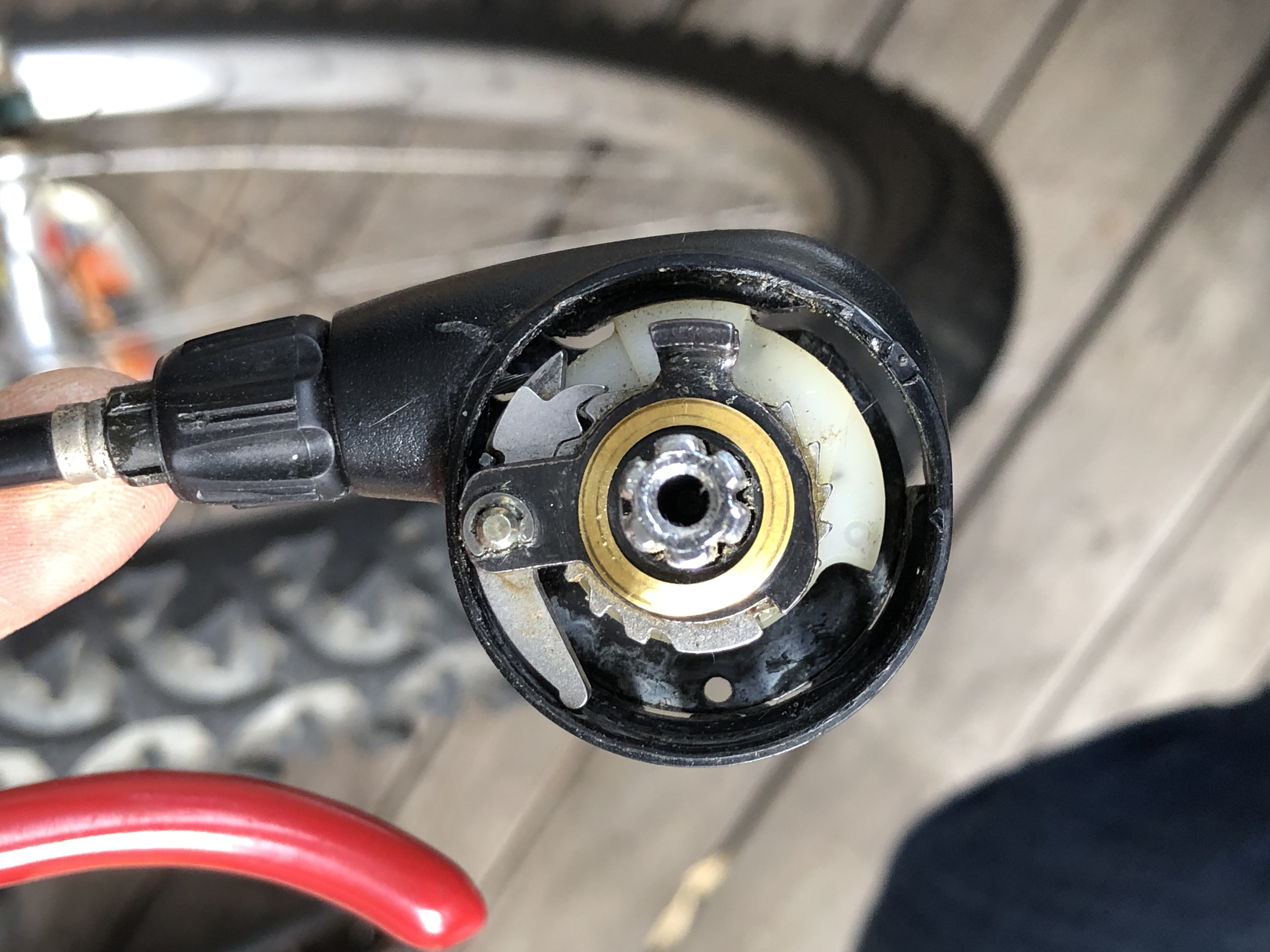
And here are some photos of the finished assembly from different angles.


Using cURL to send an e-mail with an attachment

TL;DR Version: You would think that sending an e-mail with an attachment using only cURL in a shell script would be a simple exercise, indeed it's a native feature of cURL. One day I was looking for a quick bit of info for a shell script I was writing and became frustrated at the lack of a fully working example. The documentation has a few ambiguities which made putting it all together not just a 5 minute exercise. So for those looking for a fully working example, check out the script I put together here: https://github.com/ambanmba/send-ses.

Longer version: I've been looking for a way to send quick transactional messages using Amazon SES via a shell script. There is the aws-cli which has built-in features for this and this technique works, as outlined here: https://github.com/ambanmba/aws-ses-sender. The problem with this approach, however; is that you need to have installed the aws-cli on the device (which isn't always possible/feasible) and it creates a dependency that I was looking to avoid. It also requires you to use Amazon SES as opposed to any SMTP server.

The cURL project (also see here) natively supports sending mail via SMTP and also has the benefit of being preinstalled on many systems include macOS, Linux/Unix and even more recent versions of Windows. This opens up the possibility of a completely cross-platform method of sending messages from the command line that contain attachments. 

If you Google around how to send e-mails with cURL they don't tend to include examples that include attachments for some reason. The other thing you see is that people build up an rfc5322 formatted file which is then sent via the cURL command. This to me was inelegant since cURL natively supports making the rfc5322 file on its own. 

So my goal became to create a way to 1) send an e-mail, 2) using an SMTP server, 3) with an attachment, 4) that has the correct MIME type associated with it, 5) without creating any interim temporary files. 

And voila! Here is my worked example (also on GitHub: https://github.com/ambanmba/send-ses) which uses Amazon SES, although you could use whatever SMTP server you like. 

It uses the native cURL functionality (-F and -H) to directly create and send the rfc5322 file without any interim steps.

To use this, you just run this script and provide filename to send.

#!/bin/bash 

sesAccess='AKIAXXXXXXXXXXXXXXXX' sesSecret='Bxxxxxxxxxxxxxxxxxxxxxxxxxxxxxxxxxxxxxxxxxxx'
sesFromName="Joe McJones"
sesFromAddress="joe.mcjones@fakeaddress.net"
sesToName="Mary McMary"
sesToAddress="mary.mcmary@notmyrealmail.com"
sesSubject="Test Email from Script"
sesSMTP="email-smtp.us-east-1.amazonaws.com"
sesPort="465"
sesMessage=$'Test of line 1\nTest of line 2'
sesFile="$1"
sesMIMEType=`file --mime-type "$sesFile" | sed 's/.*: //'`

curl -v --url smtps://$sesSMTP:$sesPort --ssl-reqd  --mail-from $sesFromAddress --mail-rcpt $sesToAddress  --user $sesAccess:$sesSecret -F '=(;type=multipart/mixed' -F "=$sesMessage;type=text/plain" -F "file=@$sesFile;type=$sesMIMEType;encoder=base64" -F '=)' -H "Subject: $sesSubject" -H "From: $sesFromName <$sesFromAddress>" -H "To: $sesToName <$sesToAddress>"

Driving a LED panel with a spreadsheet (Y5207 / AM03127 N00GA)

I recently found a LED panel on the street with no documentation, cabling, power supply, etc. I thought it would be a fun project with my son to see if we could get it going. The only markings were a model number Y5207. It turns out this is a widely available and very generic device that is also known by other part numbers such as the Maplin N00GA, Amplus AM03127, Velleman MML16R, and many others. They come in different sizes and optionally in different colours.

The Y5207 has just a power connection for 12VDC and an RJ-11 port for RS-232 data. The RJ-11 pinout for RS-232 has no set standard so we had to figure it out. You only need GND, RXD, TXD so it's not hard to work out with trial an error. In our case, we made up a cable as per the photo.

With the device facing towards you and the connectors on the left side, the top pin is GND, the next pin down is TXD and the next pin down is RXD.

The bad news: Upon reading the documentation, you can't just send this thing human generated commands via the serial port. The information has to be structured with a checksum calculated individually for each command. This makes it basically impossible for a human to hand craft commands to send. Therefore you can't just play with it with a young child that doesn't have enough math skills to understand how to construct a checksum.

To play with it you have a few options:
1. Connect to an Arduino, Raspberry Pi or other micro controller and use various libraries and code segments available on Github (like this one and many others; https://github.com/micolous/ledsign/tree/master/docs-official/y5207). There are also some great write ups like this one.
2. Get a copy of the official software (which is only for Windows). You can use some Googling around with the part numbers above to find it. The problem with this option is that it's just a black box, you have no idea how it works.
If you don't have a Windows machine, or don't want to mess around with Python, Java, etc, or.... in my case I wanted to create something that was interactive and allowed for young children to have a play with controlling such a device. This meant something like a spreadsheet!

The nice thing about doing it in a spreadsheet is:
1. You can very easily see HOW it all works without any prior programming knowledge
2. You can use it interactively from any computer that can run a spreadsheet (completely hardware agnostic)
3. You can start playing it right now with the device you are using to read this blog post
4. You can more or less mask the checksum calculation on a background sheet 

The only thing you need is a way to send RS-232 data to the device. You can use a USB-Serial adapter which are incredibly cheap and ubiquitous. (For example: https://www.aliexpress.com/wholesale?catId=0&initiative_id=SB_20200406201242&SearchText=usb+to+rs232)

You also need a terminal that allows your operating system to actually send the data. Examples include SerialTools (Mac), or Putty (Multi-Platform)

This spreadsheet implements virtually all the features available in the official technical documentation of the device. (available here: https://github.com/micolous/ledsign/blob/master/docs-official/y5207/RGB%20ledbar%20conrad.pdf)

If you are too impatient to read any of this, just send the following string down the RS-232 cable by cutting/pasting it into your terminal program at 9600,8,N,1, and it may give you motivation:

<ID00><L1><PA><FE><MQ><WA><FB><AA><CC><N00>Hello World0D<E>

Notice the little 0D just before the <E> that's the checksum. You need to individually calculate it for each unique command. Bit of a bummer that prevents straight human-entered commands, but that's what the spreadsheet does.
Read below to find out how to use the spreadsheet in more detail:

CLICK HERE TO DOWNLOAD THE SPREADSHEET - Excel Version

CLICK HERE TO ACCESS THE SPREADSHEET - Online Google Sheets Version

The TL;DR version:
Main Sheet:  You enter your information in the yellow cells and the output is in the dark green cells. Each row of green cells can just be cut / pasted into a terminal software to send straight down the RS-232 wire. Use 9600 baud, 8 bits, No Parity, 1 Stop Big (this is commonly referred to as 8N1). 
Example: Cut cell T4 and Paste it into your terminal program and your sign should say Hello World.

It's basically that simple. You can then start messing with the "Message Options" to change the font, style, speed, etc. If you get more adventurous you can add Special Characters and custom graphics per the instructions in cells P10 and below.

The Slightly Longer Version:
I would recommend you read the documentation here to get a sense for how the commands work. The thing that makes it slightly complex is that for each command you need to calculate a checksum using an XOR algorithm. The spreadsheet sorts this out for you and the items in the green cells (T4 for example) have this checksum already applied.

Other Considerations:
1. Utility Sheet: There is a sheet called "Utility Sheet" which is in the tab next to "Main Sheet". Here you can perform some utility functions. For example, the spreadsheet assumes that you have sent the command in cell B5 of the utility sheet if you want to use all 4 "pages" (represented by cells P4, P5, P6 and P7 in the Main Sheet). You can have up to 26 pages and it would be easy to modify the spreadsheet to accommodate all 26.

2. LED Panel Capabilities: Some of the settings (for example multiple Lines, the largest font size, or various colours) only work on panels that have those capabilities. The panel I found was a red single line panel so I couldn't use some of the features.

3. Custom Graphics: You can create custom graphics (for example a company logo). These graphics cannot be produced in this version of the spreadsheet as it's quite complex to create. There are some built-in graphics you can try, for example by adding a to your text, but you can't create your own with this spreadsheet. If you do create your own via other means, they are stored in the panel. So if you create a custom image stored in Page 4, Block 1, then you could call it from the spreadsheet with (D = Page 4, 1 = Block 1)

Future Work:
1. Implement the Custom Graphics Generator within the spreadsheet (I have an idea of how to do it from my QR Code Generator spreadsheet).
2. Find out if the spreadsheet itself can send the data directly to the serial port - This could allow directly driving the display from Google Sheets?

Trigger a new macOS FileVault Recovery Key for Escrow

Starting with macOS 10.13 you can now escrow the FileVault recovery key with an MDM. This is useful if you are running a fleet of macOS devices and want to automatically store the recovery key. The problem is that once the key is generated, it is lost forever if you don't store it somehow. It also means that if you implement an escrow policy on a machine with FileVault already enabled, you cannot escrow the key. The trick is to re-generate a key which will allow it to be escrowed. The command is:

sudo fdesetup changerecovery -personal

After entering the command you will be asked for the password for the logged in user (you won't see the password as you type it) then hit return.

Then it will ask for a user that has access to the FileVault key - which is typically the same user and then again enter the password. The interaction looks something like this:


Test-MacBook-Pro:~ testadmin$ sudo fdesetup changerecovery -personal
Password: [enter the password]
Enter the user name: testadmin
Enter the password for user 'testadmin':
[enter the password]
New personal recover key = '32BT-LEXH-59KL-VUVV-73HU-V92Q'
Test-MacBook-Pro:~ testadmin$